Oct 26, 2026
The NIS2 directive and narrowcasting: how to keep your screens secure
The NIS2 directive has applied in the Netherlands since August 15, 2026. Learn what it means for your narrowcasting and how to keep your screens secure.
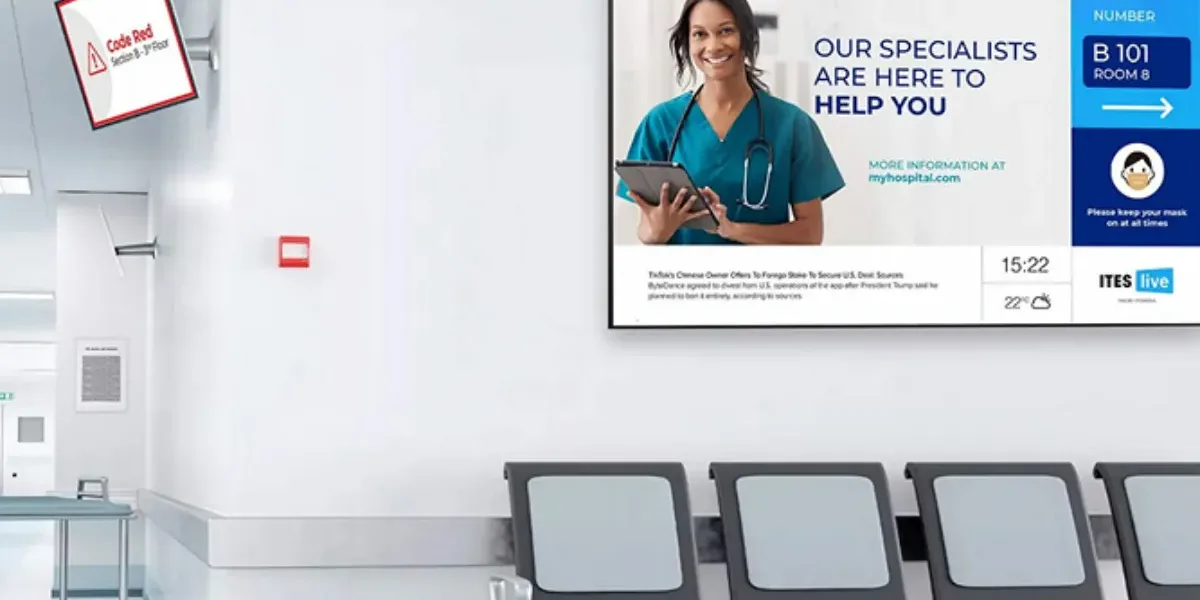
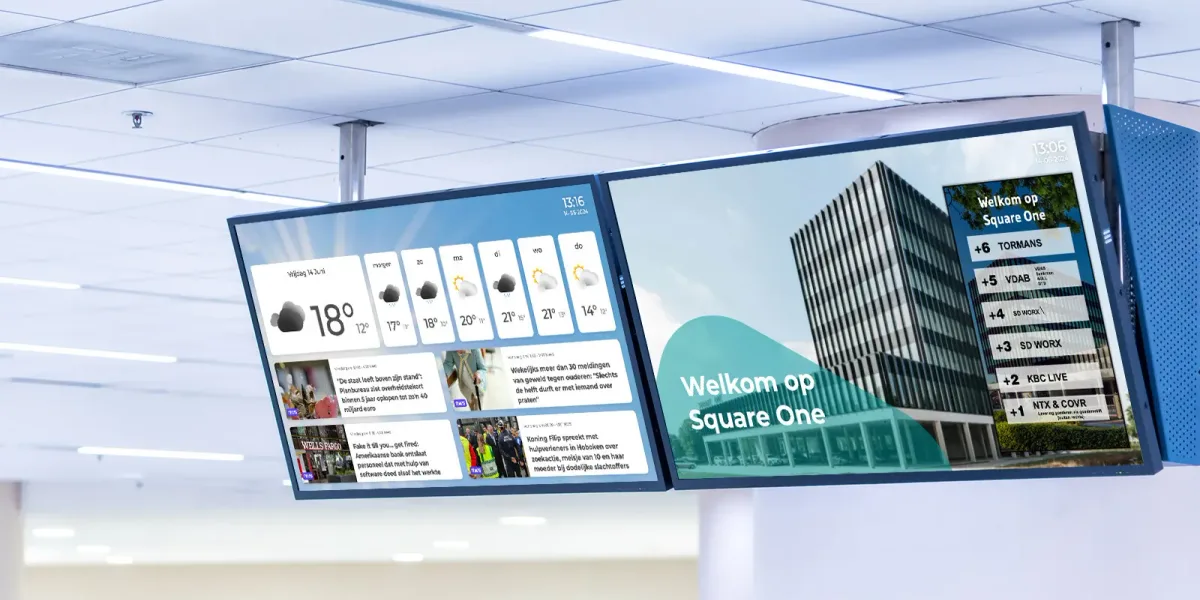
Since August 15, 2026, the Dutch Cybersecurity Act (Cyberbeveiligingswet) has been in force: the Netherlands' implementation of the European NIS2 directive. Thousands of organizations in healthcare, education and government, among other sectors, must be able to show that their digital security is in order. Almost everyone thinks of laptops, servers and email first. But the screens in your lobby, waiting room or cafeteria are connected to your network too. In this article you'll learn what the NIS2 directive means for your narrowcasting and how to keep your screens secure.
Please note: this article is not legal advice. If you're unsure whether your organization falls under the law, use the Dutch government's NIS2 check or consult a specialist.
What is the NIS2 directive?
NIS2 is a European directive designed to raise the level of cybersecurity across the EU. The Netherlands transposed it into the Cybersecurity Act (Cbw), which replaces the former Network and Information Systems Security Act (Wbni). The new law is much broader than its predecessor: far more sectors and organizations fall under it.
Who does the NIS2 legislation apply to?
The law distinguishes between essential and important entities. Under the directive, this generally means medium-sized and large organizations, with 50 or more employees or more than € 10 million in annual turnover, in sectors such as:
- healthcare, such as hospitals and other care providers;
- government, including municipalities, provinces and water authorities;
- educational institutions;
- energy, transport, drinking water and wastewater;
- digital infrastructure and digital service providers;
- manufacturing, food, and postal and courier services.
In the Netherlands, municipalities, provinces and water authorities are designated as essential entities. Smaller organizations feel the effects of the law too, because large customers increasingly ask their suppliers to prove that they work securely.
What do you need to do under the NIS2 directive?
- Register with the National Cyber Security Centre (NCSC).
- Duty of care: identify risks and take appropriate measures, including across your supply chain.
- Reporting obligation: an initial notification of a significant incident within 24 hours, and a more detailed report within 72 hours.
- Board members are personally responsible and can be held liable.
The directive sets fines of up to € 10 million or 2 percent of worldwide turnover for essential entities, and up to € 7 million or 1.4 percent for important entities.
Why your screens fall under the NIS2 directive
The law doesn't prescribe specific measures per device. You have to assess the risks of all your network and information systems yourself. Narrowcasting screens and media players are small computers that are connected to your network day and night. That makes them a risk that's often overlooked:
- Smart TVs and cheap players sometimes receive hardly any security updates.
- Default passwords aren't changed after installation.
- Several colleagues share a single login to manage the screens.
- Screens sit on the same network as the patient or administration system.
- Content is transferred via USB sticks, which can also bring in malware.
- A hacked screen in a public space can display unwanted images, damaging your reputation.
How to make your narrowcasting NIS2-proof: 7 measures
1. Map all your screens and players
You can only secure what you know about. Make an overview of every screen and every player: location, type, software version and who is responsible for it. Screen groups in your management software keep that overview clear.
2. Put screens on a separate network
Place screens in their own network segment or VLAN, separated from systems that hold sensitive data. If something goes wrong with a screen, the damage stays limited.
3. Keep hardware up to date
Choose players and displays for which the manufacturer provides regular security updates, and schedule those updates at a fixed time. Replace devices that no longer receive updates.
4. Give every user their own account
No more shared logins. Give everyone a personal account with only the permissions they need. A receptionist doesn't need to be able to change screens at other locations. Remove accounts as soon as someone leaves the organization.
5. Work centrally and without USB sticks
With browser-based narrowcasting software you manage content in one place and nobody has to walk around with USB sticks. That's more secure and saves time too.
6. Assess your supplier
The NIS2 directive calls for attention to supply chain security. So ask your narrowcasting supplier: where is data stored, how are accounts secured, how quickly are vulnerabilities fixed, and is there a data processing agreement?
7. Record it in your NIS2 checklist
Include narrowcasting in your risk analysis and your NIS2 checklist. Describe who is responsible, which measures you've taken and what you do in the event of an incident. That way you can show that you take your duty of care seriously.
Screens as a tool during an incident
Narrowcasting isn't only a risk; it can also help. If the intranet or email goes down during a cyber incident, you can still reach employees and visitors through the screens in the building.
Frequently asked questions about NIS2 and narrowcasting
Does my narrowcasting supplier have to comply with NIS2 itself?
That depends on the supplier and the sector. What matters more is that you, as an organization, can show that you assess your suppliers. So ask about their security measures.
Does the NIS2 directive apply to me as a small business?
Usually not directly, but as a supplier to an organization that does fall under it, you'll often have requirements imposed on you.
Manage narrowcasting securely from your browser
Want to manage your screens centrally and clearly, with individual accounts and permissions per user? Try Stremo free for 14 days. You don't need a credit card.